How to Make a Prominence II Server (2026)
Set up a Prominence II: Hasturian Era server: Fabric on 1.20.1 with Java 17, how much RAM this 460-mod pack needs, the one-click install, the built-in pre-generator and updates without losing your world.
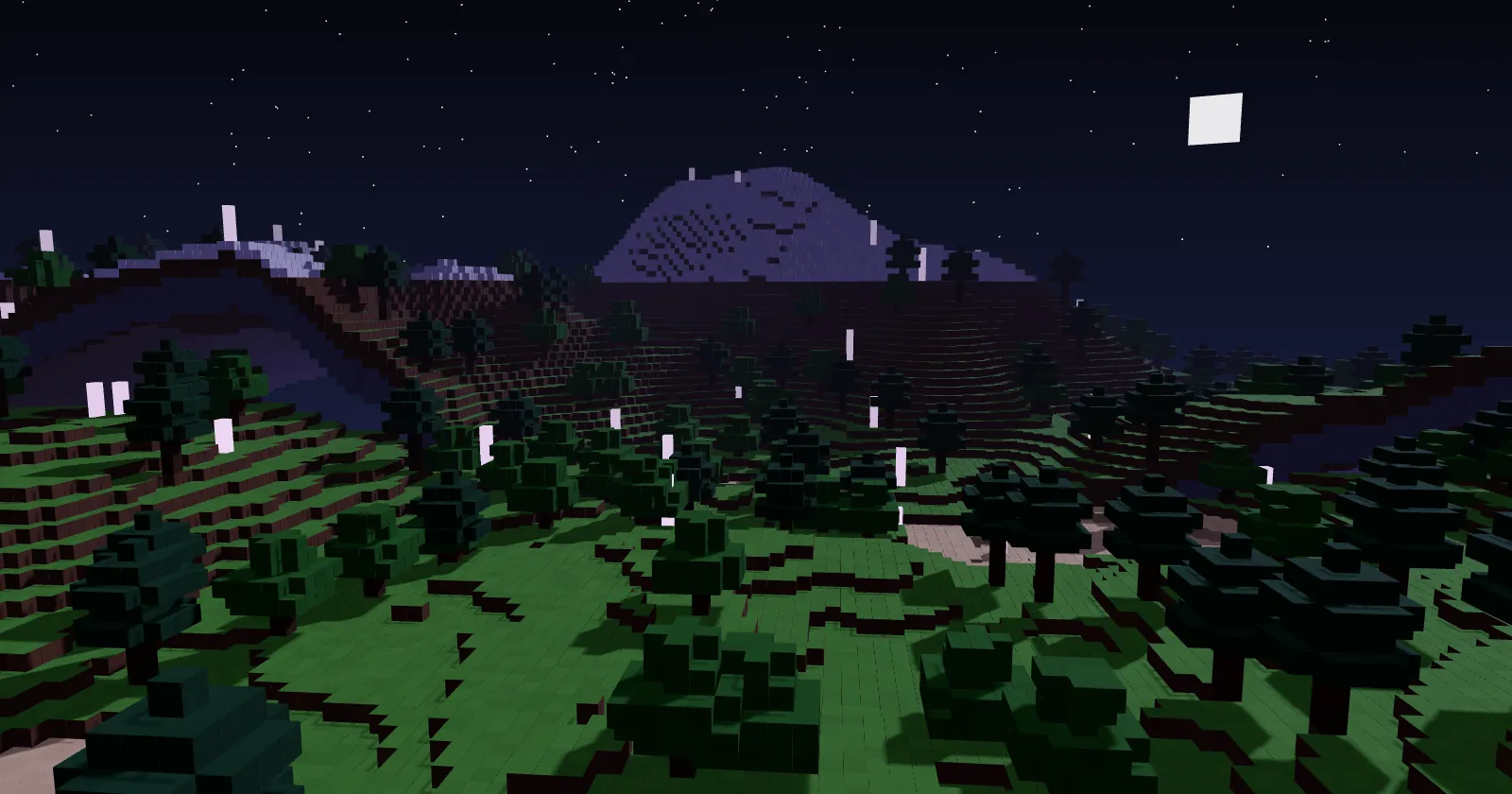
Prominence II: Hasturian Era is a large RPG pack on Fabric 1.20.1, with a story, a talent tree, bosses and a capital city full of NPCs. It is one of the heaviest Fabric packs, so the plan size matters. This guide sets up a Prominence II server on ServerPrism. In a hurry? The Prominence II server hosting page installs it in one click.
Prominence II at a glance
| Item | Details |
|---|---|
| Newest version | v4.1.8 (released 11 November 2026) |
| Minecraft | 1.20.1 |
| Mod loader | Fabric Loader 0.19.3 |
| Mods | About 460 |
| Java | 17 |
| RAM | 8 GB for 3 to 4 players, plus about 1 GB per extra player |
| Source | CurseForge (server files) and Modrinth |
We checked these on 13 November 2026. We list the pack twice, from CurseForge and from Modrinth; both are the same official pack.
How much RAM does a Prominence II server need?
The pack's makers recommend at least 8 GB for 3 to 4 players, plus 1 GB for every extra player, and a stronger CPU from about 15 players. That matches what we have seen: on 6 GB this pack runs out of memory.
| Players | Plan |
|---|---|
| 1 to 4 | 8 GB |
| 5 to 8 | 10 to 12 GB |
| 9 to 15 | 12 to 16 GB |
Don't run Prominence II on 6 GB. With about 460 mods, Java needs well over 1 GB of memory outside its heap, and on small plans the server gets stopped for running out of memory, usually seen as Exit code: 137 and players losing their recent progress. If that happens on 8 GB, lower RAM Percentage on the Startup tab from 80 to 70, stop and start the server, or move to a bigger plan: How to upgrade or downgrade your plan.
Step 1: Install Prominence II
On a new server: open the Prominence II page, click Get your server and choose a plan. In the checkout, the Software section already has Minecraft and the pack picked. After payment we install the pack, Fabric and Java 17.
On a server you already have:
- Make a backup first, because installing a modpack replaces the server's files. Open Server Settings, then Backups, then User Backups, and click Create Backup.
- In the sidebar, under Service, click Change Runtime.
- Under Select Game & Version, choose Minecraft as the Runtime, search for "Prominence" under Type / Modpack, and pick Prominence II: Hasturian Era and the Version.
- Click Switch Runtime, read the confirmation, tick the box and click Switch Now.
Prominence Classic is a different, older pack. More about switching: Change Runtime.
Step 2: Start the server for the first time
Click Start in the Console. The first start takes a few minutes. The server is ready when the console shows a line like:
Done (121.336s)! For help, type "help"
eula.txt is set, and we put the server on Java 17, the right Java for Minecraft 1.20.1. Don't move it to a newer Java on the Startup tab: Minecraft 1.20.1 and the spark profiler in the pack don't work on Java 25. If the console prints a [ServerPrism] line about Java, pick Java 17 under Docker Image.
Step 3: Settings worth checking
Open Files, then File Manager, and edit server.properties with the server stopped:
simulation-distance: 6 to 8 is a good value for this pack on a busy server.view-distance: 8 to 10.- If players are kicked with "Flying is not enabled on this server", set
allow-flight=true.
Use Player Lists under Minecraft for the whitelist and operators (Add to whitelist, Make operator). More in Server basics: server.properties, whitelist, and ops.
Step 4: Pre-generate the world
Prominence II already includes Chunky, so there is nothing to install. With nobody online, type in the Console:
chunky radius 3000
chunky start
chunky pause and chunky continue stop and resume it. Pre-generating makes exploring much smoother, because the pack's world generation is heavy.
How players join
- Install Prominence II: Hasturian Era in the CurseForge app, the Modrinth App or Prism Launcher, at the same version as the server.
- Give the game plenty of memory in the launcher's Java settings; the pack is heavy on the client too.
- In Minecraft, choose Multiplayer, then Add Server, and paste the address from the Overview tab under Connection. See Connecting to your server.
Common first-start problems
| What you see | What to do |
|---|---|
Exit code: 137 and players lose recent progress |
Out of memory. Lower RAM Percentage to 70 or move to a bigger plan (see above). |
| The server crashes when someone casts Ender Gaze | Fixed in v4.1.8. Update the pack. |
The server stops at start with a [ServerPrism] Java line |
Pick Java 17 under Docker Image on the Startup tab. |
| Friends see a list of mismatched mods | Different pack versions. Everyone needs the server's version. |
| Players are kicked for flying | Set allow-flight=true and restart. |
Keep it running smoothly
- Pre-generate with Chunky before a big group starts.
- spark is included: run
spark profiler start, wait a few minutes while it lags, thenspark profiler stopand open the link. - Keep
simulation-distancemodest; most of the work is mobs and NPCs near players. - More tips: Reducing lag on your Minecraft server.
Backups and updating Prominence II
- Before every update: Server Settings, then Backups, then User Backups, then Create Backup, and lock it. See Backing up your server.
- Read the changelog first. Some updates come with instructions: 4.0.0 asked players to empty Nether Chested chests before updating, and 4.1.5 removed dimensions, with anything left in them gone for good.
- In Change Runtime, keep the pack as the Type / Modpack and pick the newer Version. The confirmation screen says Your world is kept: the
worldfolder stays, mods and configs are replaced. - Ask everyone to update to the same version.
Never move a world back to an older version; restore your backup instead.
Bringing an existing world
Use SFTP (under Files): the Host, Port and Username are shown there, and SFTP has its own password, click Generate new password. Stop the server, upload the world folder and set level-name in server.properties to its name. Step by step: Uploading a Minecraft world.
More modpack guides
- How to Make an RLCraft Server
- How to Make a Cobblemon Server
- Browse all modpacks we install in one click
- Prominence II server hosting
Stuck? Open a support ticket with your server name and the last lines from the console, and we'll help.