How to Make a GT New Horizons Server (2.9)
Set up a GT New Horizons server: the Java 8 and Java 17+ server packs, how much RAM your group needs, the one-click install, the built-in backups, joining with a matching client and updating one version at a time.
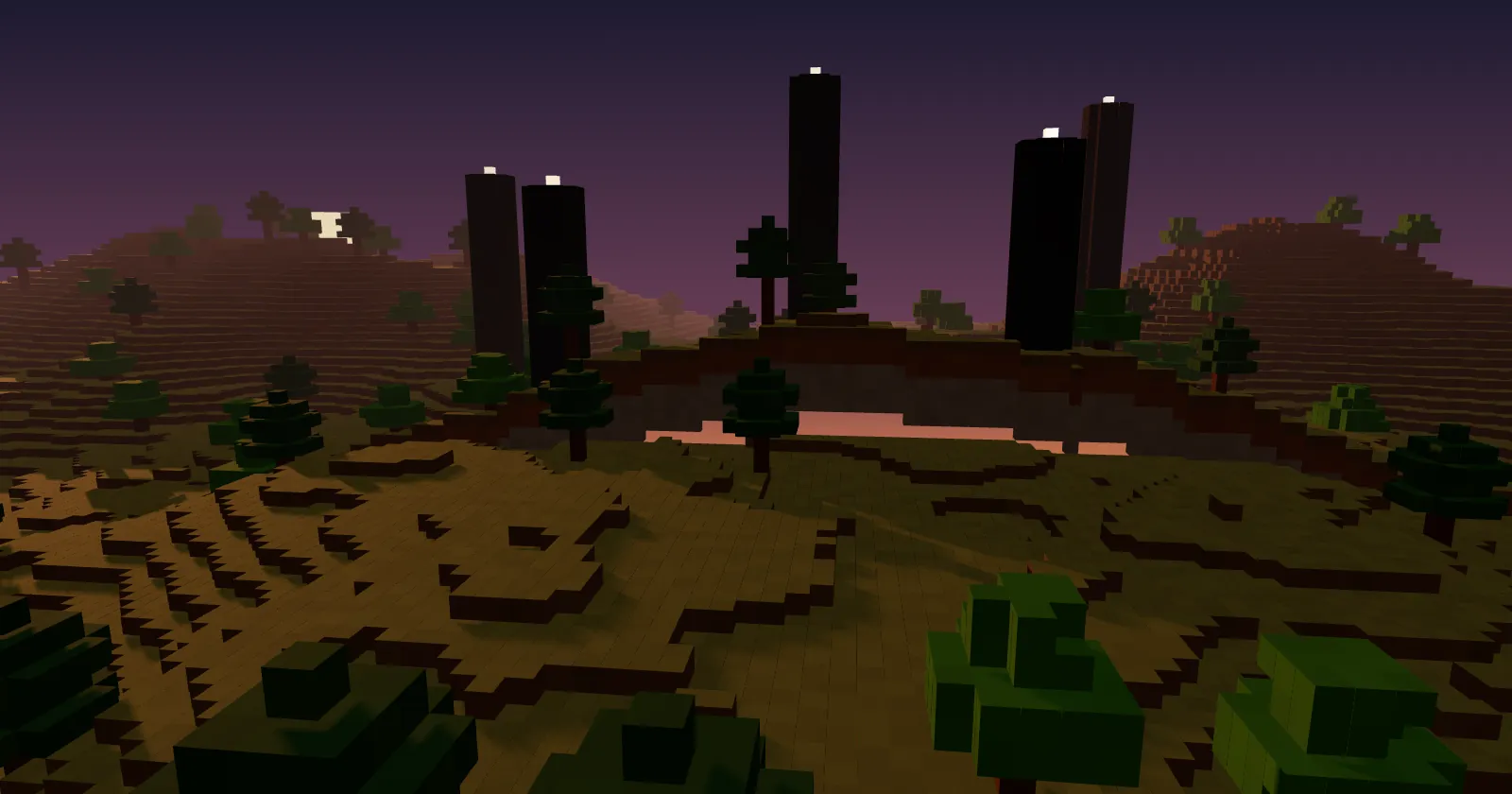
GT New Horizons (GTNH) is a long expert pack built around GregTech on Minecraft 1.7.10, with thousands of quests from the Stone Age to space. A group usually plays one world for months, so a stable server matters more than for most packs. This guide sets up a GTNH server on ServerPrism. In a hurry? The GT New Horizons server hosting page installs the pack in one click.
GTNH at a glance
| Item | Details |
|---|---|
| Newest version | 2.9.0 (released 31 October 2026) |
| Minecraft | 1.7.10 |
| Mod loader | Forge |
| Mods | About 220 on a server |
| Java | Java 8, or Java 17 to 26 with GTNH's Java 17+ server pack |
| RAM | 8 GB for a small group, more for bigger or late-game groups |
| Source | GTNH's own downloads and CurseForge |
We checked these on 13 November 2026. The version list on the GTNH page always shows the newest release.
Java 8 or Java 17+?
GTNH publishes two server packs for each release: one for Java 8 and one for modern Java (Java 17 to 26 for 2.9.0). The GTNH team recommends modern Java: it runs better, and Java 8 is "not recommended" in their install guide. Java 25 works with GTNH 2.8 and newer.
Our installer uses the Java 17+ server pack on Java 25 when one exists for your version, and the Java 8 pack on Java 8 otherwise. You see which one your server runs on the Startup tab under Docker Image. Don't change the Java version by hand: the two packs start in different ways, so a Java 8 pack doesn't start on Java 25 or the other way round. If your server runs the Java 8 pack and you'd like the Java 17+ one, open a ticket and we'll switch it for you.
How much RAM does a GTNH server need?
The GTNH wiki's server guide starts at 6 GB, plus about 0.5 GB for every extra player in the early game and about 1 GB per player from the UV tier on, when bases get big. Most GTNH servers we host run on 8 GB.
| Players | Plan | Why |
|---|---|---|
| 1 to 3 | 8 GB | Room for the pack and early bases. |
| 4 to 8 | 10 to 12 GB | More players, more loaded chunks and machines. |
| 8 or more, or late game | 12 to 16 GB | Large factories in many dimensions. |
On the Java 17+ pack we give Java 75 % of the plan and reserve it all at start, so the server's memory graph sits high from the first minute. That is normal. GTNH also needs disk space: the wiki asks for 20 GB or more, and the built-in backups below take their share. More memory later: How to upgrade or downgrade your plan.
Step 1: Install GTNH
On a new server: open the GTNH page, click Get your server and choose a plan. In the checkout, the Software section already has Minecraft and GT New Horizons picked. After payment we install the server pack and the right Java for you.
On a server you already have:
- Make a backup first, because installing a modpack replaces the server's files. Open Server Settings, then Backups, then User Backups, and click Create Backup.
- In the sidebar, under Service, click Change Runtime.
- Under Select Game & Version, choose Minecraft as the Runtime, search for "GT New Horizons" under Type / Modpack, and pick the Version.
- Click Switch Runtime, read the confirmation, tick the box and click Switch Now.
The install downloads more than 500 MB, so give it a few minutes. More about switching: Change Runtime.
Step 2: Start the server for the first time
Click Start in the Console. The first start of GTNH takes several minutes. The server is ready when the console shows a line like:
Done (182.507s)! For help, type "help"
eula.txt is set, so you don't have to accept the EULA by hand. The pack's own settings are already in server.properties on our installs: level-type=rwg (GTNH's world generator), level-name=World and allow-flight=true. Leave level-type as it is: the GTNH wiki asks for RWG.
If Forge stops at start and asks you to confirm missing blocks or items, the world is from another GTNH version. Type fml confirm in the console only if you have a backup: the world can't go back to the older version afterwards.
Step 3: The built-in backups
GTNH ships ServerUtilities, which backs up the world on its own: on our installs every 30 minutes, keeping the last 12, in the backups folder of your server. They are handy for a quick rollback, but they sit on the same disk as your world. If your disk fills up, lower backups_to_keep or raise backup_timer in serverutilities/serverutilities.cfg (in the File Manager) and restart. The GTNH wiki warns that a full disk can corrupt the save, so keep an eye on it.
Our own backups in Server Settings, then Backups, are separate from these and are stored off the server. Use both.
How players join
- Install the same GTNH version as the server. The GTNH team recommends Prism Launcher with the Java 17+ client zip from their downloads page; the CurseForge app and Technic work too.
- Give the client enough memory: the wiki suggests at least 4 GB for joining a server.
- In Minecraft, choose Multiplayer, then Add Server, and paste the address from the Overview tab under Connection. See Connecting to your server.
Common first-start problems
| What you see | What to do |
|---|---|
| The server stops right after start on the wrong Java | The pack and the Java don't match. Open a ticket and we'll put it back on the right pack and Java. |
| Forge asks to confirm missing blocks or items | The world is from another GTNH version. Back up, then fml confirm, or install the version the world came from. |
| The disk fills up | ServerUtilities backups. Lower backups_to_keep (Step 3). |
| Friends can't join, the server lists mismatched mods | Different GTNH versions. Everyone needs the server's version. |
The server stops with Exit code: 137 |
Out of memory. Move to a bigger plan. |
Keep it running smoothly
- Big GregTech lines and many chunk-loaded bases are the usual cause of lag. Keep only the chunks you need loaded.
- Prefer the Java 17+ pack: the GTNH team recommends it for performance.
- More tips: Reducing lag on your Minecraft server.
Updating GTNH
The GTNH wiki has clear rules for updating a world:
- Back up first: Server Settings, then Backups, then User Backups, then Create Backup, and lock it.
- Update one major version at a time: from 2.7 go to 2.8, start the server and let the world load, then go to 2.9. Don't jump two versions at once.
- In Change Runtime, keep GT New Horizons as the Type / Modpack and pick the next Version. The confirmation screen says Your world is kept.
- Your own config changes are replaced by the new version's configs. Write them down before and put them back by hand afterwards; don't copy old config files over the new ones.
- Ask everyone to install the same version.
A world can't go back to an older GTNH version once it has been loaded on a newer one. If something goes wrong, restore your backup.
Bringing an existing GTNH world
Use SFTP (under Files): the Host, Port and Username are shown there, and SFTP has its own password, click Generate new password. Stop the server and upload your world as the World folder (or set level-name to its folder name). It must come from the same GTNH version or an older one, see the update rules above. Step by step: Uploading a Minecraft world.
More modpack guides
- How to Make an ATM10 Server
- How to Make a Create: Above and Beyond Server
- Browse all modpacks we install in one click
- GT New Horizons server hosting
Stuck? Open a support ticket with your server name and the last lines from the console, and we'll help.