How to Make an ATM11 Server (2026)
Set up an All the Mods 11 server on Minecraft 26.1.2: Java 25, how much RAM your group needs, the one-click install, beta updates without losing your world, and joining with a matching client.
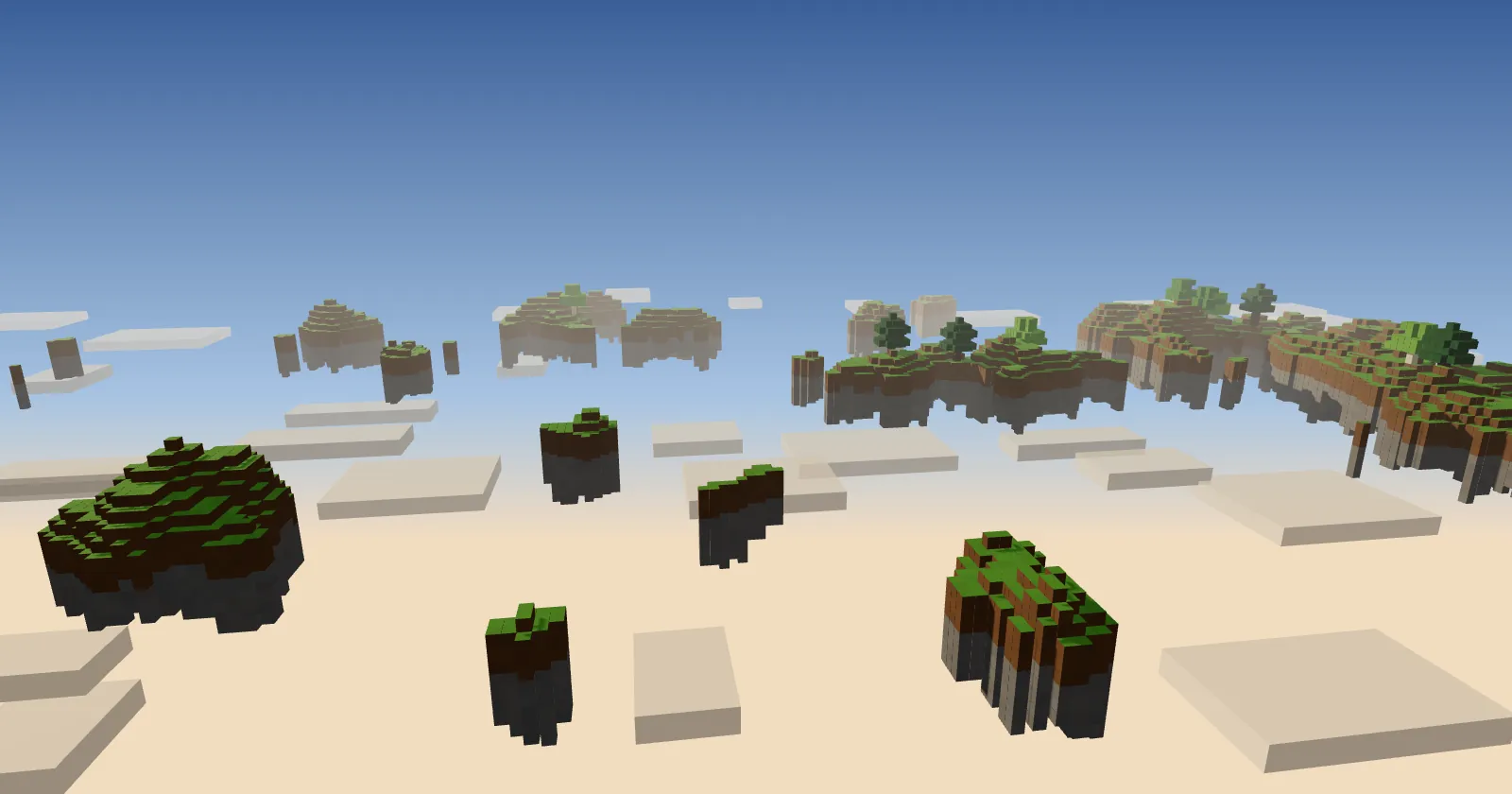
All the Mods 11 (ATM11) is the newest pack in the All the Mods series, on Minecraft 26.1.2. It is still a beta: the pack grows with every release and parts of it, like the quest book, are not finished. This guide sets up an ATM11 server on ServerPrism and shows how to keep your world safe through the frequent updates. In a hurry? The ATM11 server hosting page installs the pack in one click.
ATM11 at a glance
| Item | Details |
|---|---|
| Newest version | 0.14.0-beta (released 3 November 2026) |
| Minecraft | 26.1.2 |
| Mod loader | NeoForge for 26.1.2 (build 126) |
| Mods | 305 in the pack. The server files leave out the client-only ones. |
| Java | 25 |
| RAM | 8 GB for a small group, 10 to 14 GB for more players |
| Source | CurseForge, with official server files |
We checked these numbers on 13 November 2026. ATM11 releases a new beta every week or two, so the version list on the ATM11 page is the place to see the newest one.
How much RAM does an ATM11 server need?
ATM11 has fewer mods than ATM10 so far, but every beta adds more, and it runs the newest Minecraft, which itself needs more memory than older versions. Every player loads the chunks around them, and FTB Chunks lets players force-load their bases so machines keep running when nobody is near.
| Players | Plan | Why |
|---|---|---|
| 1 to 4 | 8 GB | The pack itself plus a few bases. |
| 5 to 10 | 10 to 12 GB | More loaded chunks and more automation at once. |
| 10 or more | 12 to 14 GB | Big bases, many force-loaded chunks, and room for the mods later betas add. |
Java gets 80 % of your plan's memory (the RAM Percentage setting on the Startup tab). Don't raise it above 80: Java needs memory outside its heap, and when the whole process runs out, the server is stopped and loses everything since the last save. Move to a bigger plan instead, see How to upgrade or downgrade your plan.
Step 1: Install ATM11
On a new server: open the ATM11 page, click Get your server and choose a plan. In the checkout, the Software section already has Minecraft and ATM11 picked; leave the version on the newest. After payment we install the server files, the matching NeoForge version and Java 25.
On a server you already have:
- Make a backup first, because installing a modpack replaces the server's files. Open Server Settings, then Backups, then User Backups, and click Create Backup.
- In the sidebar, under Service, click Change Runtime.
- Under Select Game & Version, choose Minecraft as the Runtime, search for "All the Mods 11" under Type / Modpack, and pick the Version.
- Click Switch Runtime, read the confirmation, tick the box and click Switch Now.
A world from ATM10 or another 1.21.1 pack can't simply move to ATM11: the mods are different, so start a new world. More about switching: Change Runtime.
Step 2: Start the server for the first time
Click Start in the Console. The first start takes a few minutes while NeoForge loads every mod and the world is generated. The server is ready when the console shows a line like:
Done (88.402s)! For help, type "help"
eula.txtis set, so you don't have to accept the EULA by hand.- Minecraft 26.1 and newer need Java 25. If the console prints a
[ServerPrism]line saying the server needs Java 25, open Startup, pick Java 25 under Docker Image and start again. - The server starts from the Startup tab, not from the pack's
startserver.sh,run.shoruser_jvm_args.txt, so editing those files changes nothing.
Step 3: Settings worth checking
Open Files, then File Manager, and edit server.properties with the server stopped:
allow-flight: on our installs the ATM server files already setallow-flight=true, so players with flight items aren't kicked. Keep it that way.simulation-distance: how far around players machines and mobs keep working. 6 to 8 saves a lot of CPU on a busy server.motd,difficulty,max-players: up to you. Leaveserver-portalone, we set it on every start.
Use Player Lists under Minecraft for the whitelist and operators (Add to whitelist, Make operator). More in Server basics: server.properties, whitelist, and ops.
Step 4: Pre-generate the world
New chunks are the most expensive thing a modded server does. Chunky pre-generates them and only runs on the server, so players don't need it:
- Open Mods under Minecraft in the sidebar, search for "Chunky" and install the NeoForge version for 26.1.2.
- Restart the server, then type in the Console:
chunky radius 3000
chunky start
Run it when nobody is playing. chunky pause and chunky continue stop and resume it.
How players join
- Install ATM11 in the CurseForge app, or in Prism Launcher from its CurseForge tab.
- Pick exactly the server's version. With a beta that changes every week or two, this is the most common reason friends can't join.
- Raise the memory in your launcher's Java settings if the game crashes or freezes while loading.
- In Minecraft, choose Multiplayer, then Add Server, and paste the address from the Overview tab under Connection. See Connecting to your server.
Common first-start problems
| What you see | What to do |
|---|---|
The server stops at start with a [ServerPrism] Java line |
Pick Java 25 under Docker Image on the Startup tab. |
The server stops with Exit code: 137 and players lose recent progress |
It ran out of memory. Move to a bigger plan, and keep RAM Percentage at 80 or lower. |
| Friends see a list of mismatched mods | Their client runs another ATM11 version. Everyone needs the server's version. |
| Players get stuck when they touch some modded fluids | A known ATM11 beta issue: fluids from many mods can freeze player movement. The ATM team asks players to report it to the mod's author. |
| Quests look unfinished | The quest book is still being written during the beta. |
| The server freezes or crashes during start | Read the last console lines. See Modpack won't start or freezes on boot. |
Keep it running smoothly
- ATM11 ships ModernFix and FerriteCore for memory and spark for finding lag. When the server lags, run
spark profiler startin the console, wait a few minutes, thenspark profiler stopand open the link. - Pre-generate before inviting a big group.
- Ask players to unload chunks they don't need.
- More tips: Reducing lag on your Minecraft server.
Backups and updating a beta pack
The ATM team's own advice in its changelogs is: always back up before updating. With a beta that is doubly true.
- Before every update: Server Settings, then Backups, then User Backups, then Create Backup. Lock the backup so it isn't rotated away. See Backing up your server.
- Read the changelog of the new version on the pack's CurseForge page. Betas sometimes remove or replace mods, and blocks from a removed mod disappear from your world.
- In Change Runtime, keep ATM11 as the Type / Modpack and pick the newer Version. The confirmation screen says Your world is kept: the
worldfolder stays, the mods, configs and scripts are replaced. - Ask everyone to update their client to the same version.
Never move a world back to an older ATM11 version. If an update breaks something, restore the backup from step 1.
Bringing an existing ATM11 world
Use SFTP (under Files) for big worlds. The Host, Port and Username are shown there, and SFTP has its own password: click Generate new password. Stop the server, upload your world folder, and make sure level-name in server.properties matches the folder name. The world must come from the same ATM11 version or an older one. Step by step: Uploading a Minecraft world.
More modpack guides
- How to Make an ATM10 Server
- How to Make a GT New Horizons Server
- Browse all modpacks we install in one click
- ATM11 server hosting
Stuck? Open a support ticket with your server name and the last lines from the console, and we'll help.